
Step-by-Step Guide
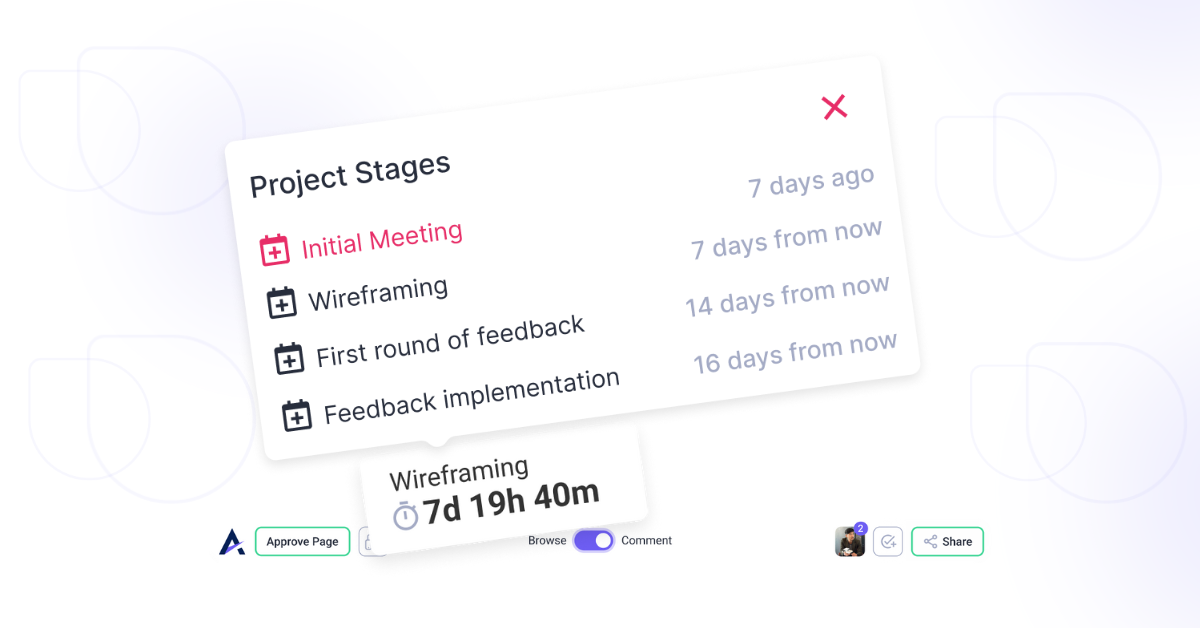
1. Setting Due Dates for Project Stages
Assigning due dates to project stages ensures alignment and accountability across teams.
Instructions:
- Log into Atarim and select the project you want to manage.
- Open the Project Stages tab in the project view.
- Create a stage with a descriptive name, such as “Homepage Review” or “Internal QA.”
- Use the calendar picker to select a deadline for the stage.
- Click Save to confirm. The stage and due date will now be visible in the project overview.

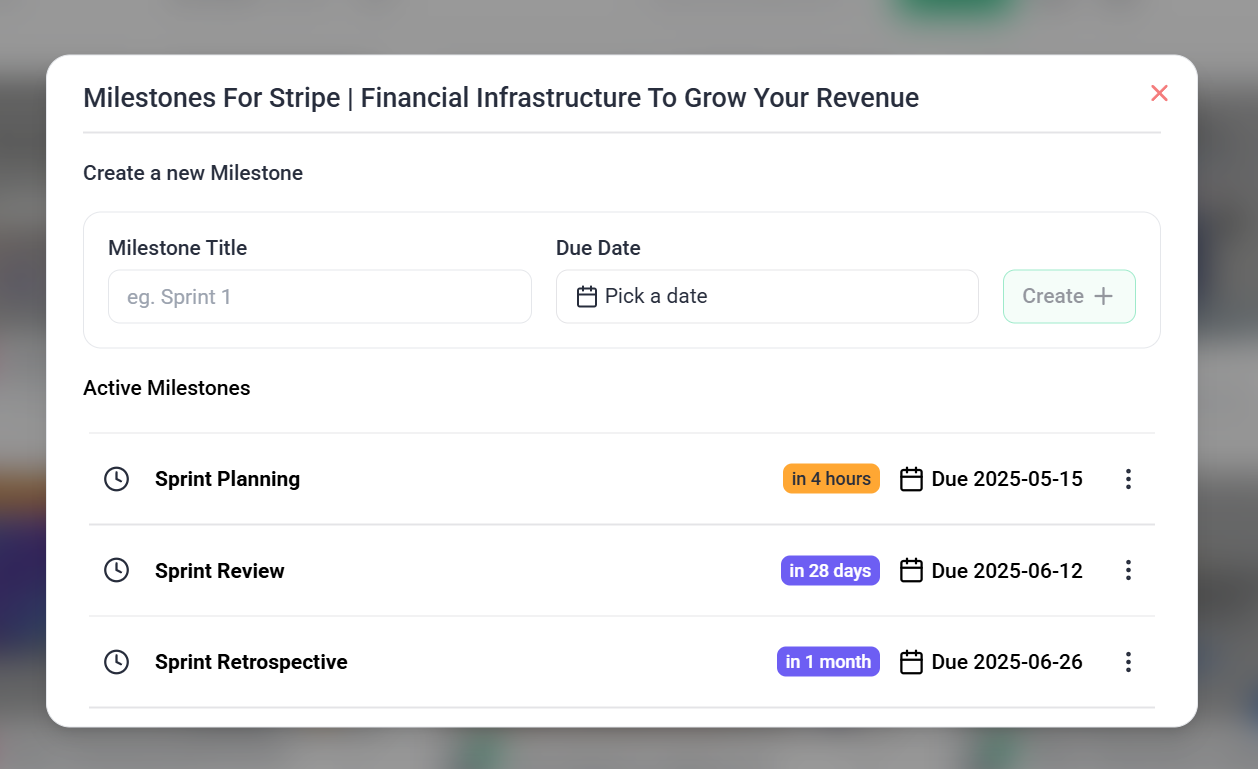
Tip: Break the project into smaller stages for better management and tracking.
2. Prioritize Tasks Effectively
Prioritizing tasks ensures teams focus on what matters most.
Instructions:
- Navigate to a task in the Inbox or Boards section.
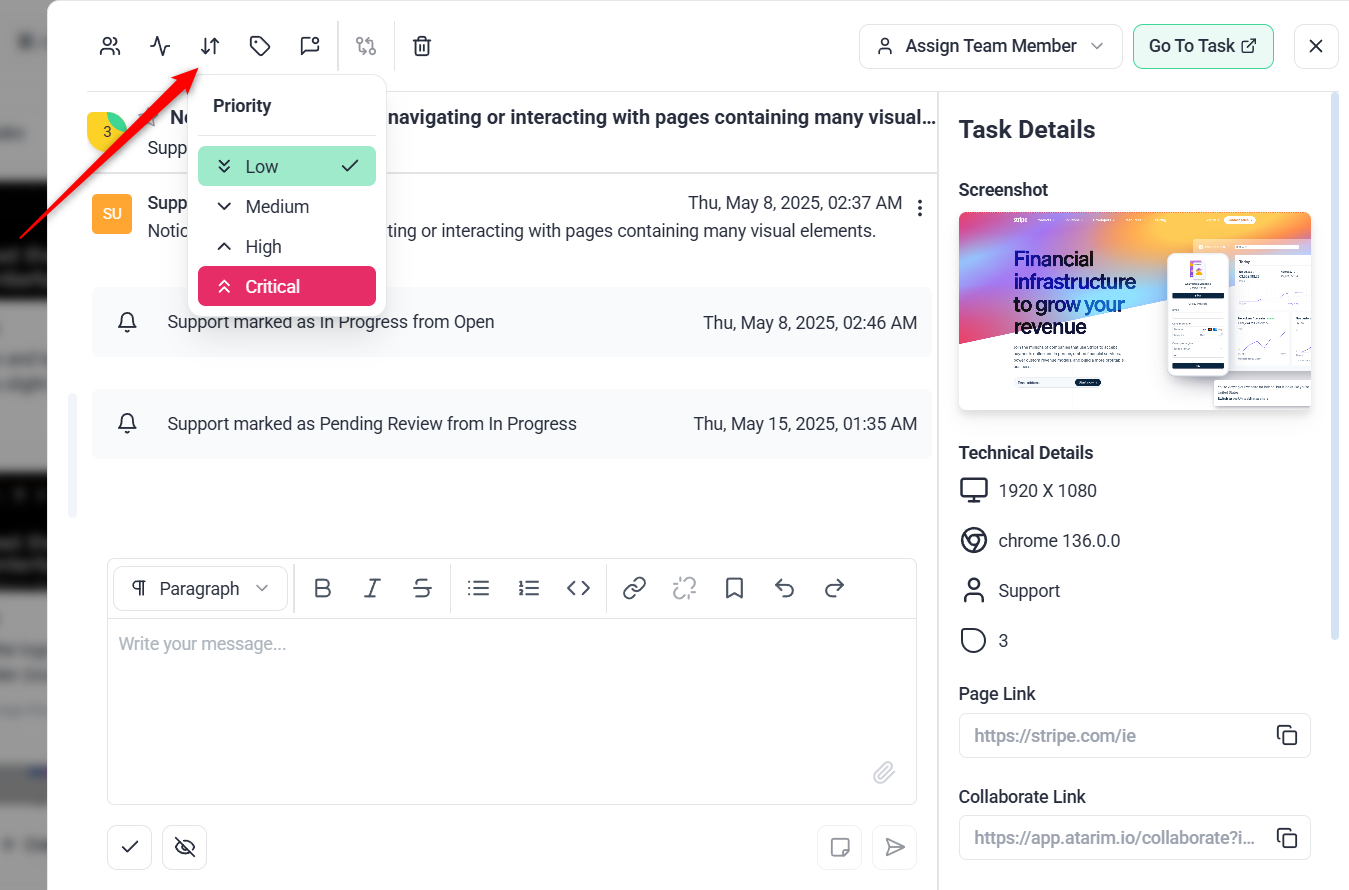
- In the task details, use the Priority Dropdown to choose from:
- Low
- Medium
- High
- Urgent
- Or on the board page, drag and drop to the relevant column.
- Apply filters in the Inbox or Boards to focus on high-priority tasks first.


3. Adjust Priorities and Due Dates as Needed
Keep your project dynamic by revisiting priorities and timelines.
Instructions:
- Check task priorities and stage due dates weekly or as project requirements change.
- Use task comments or notifications to inform the team about updated priorities or deadlines.


How to Set a Due Date on a Task
Adding a due date helps your team stay on track and ensures tasks are completed on time. You can assign or update a due date from any task view.
Instructions:
- Open the task from the Inbox, Boards, or Collaborate view.
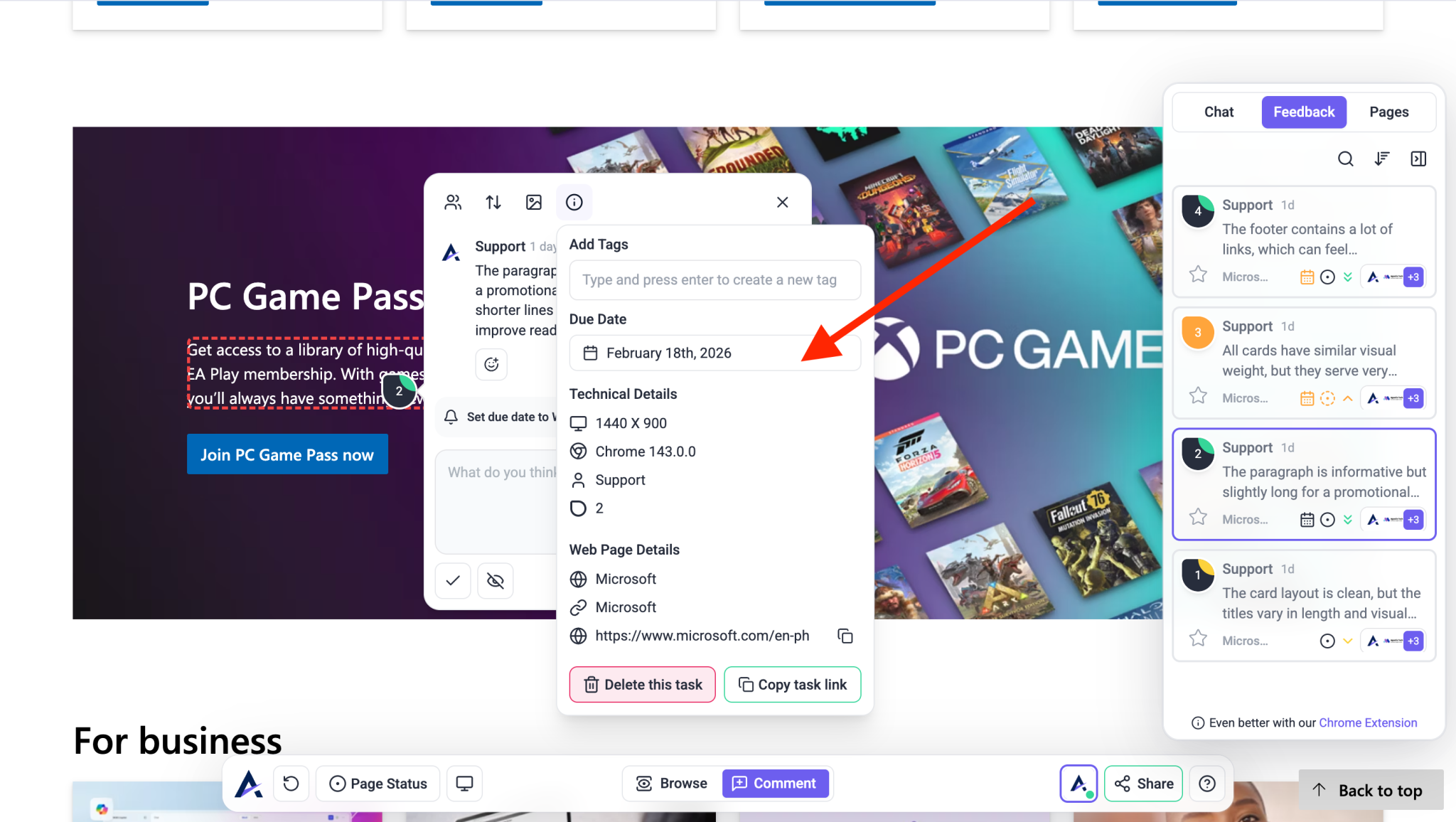
- In the task panel, locate the Due Date field (usually in the sidebar or task details section).
- Click on the calendar icon or date field to open the date picker.
- Select your desired due date from the calendar.
- The due date will be saved automatically and visible to all team members.


Task Color Based on Due Date
Atarim automatically changes the task color based on how close or overdue a task is:
- Default (No color): The task is not near its due date.
- Orange: The task is approaching its due date (within a few days).
- Red: The task is overdue — the due date has already passed.


Tip: These color indicators help you and your team quickly prioritize what needs attention.
FAQs
Yes. You can now set a due date on any individual task. Just open the task and click the Due Date field in the sidebar to select a date from the calendar.
Updates to project stages automatically notify all team members and clients with access to the project.